Hi,
just installed Windows 11 using Rufus 4.6 on my HP Elite 8000 desktop. It works fine, kept my digital licence (inherited through Windows 10 from Windows 8.1) despite TPM and CPU not being supported.
I decided to go through the whole installation from scratch, using the opportunity to reduce the size used by Windows on my hard discs, so indeed, it took about 16 hours to restore my working environment (including the Office 2013 updates
My 4 GB of RAM were really a bit short but I found 16 GB at a reasonable price.
I needed to use this tweak to see all Windows Explorer features and pop-ups:
.\ViVeTool.exe /disable /id:40950262
I don’t worry too much about Microsoft warnings: they protect themselves. Should anything happen, I still have the installation media to reinstall the current version or even Windows 10 and save my data.
I hope to celebrate the 20 years of my good old desktop in a few years.
(Of course, Linux would have been the best option … if I was not bound to Microsoft software due to my professional activities.)
Further to my earlier post, just confirming I have now also taken the plunge and joined the ranks of people running Win11 on - in my case - a 2017 laptop that’s ‘unsupported’. I’m fairly sure in my case it’s just the vintage of the CPU and certain instruction sets not being present (and not yet required, but I anticipate the rug being pulled at some point). In any case an interesting experiment… and I happily run various flavours of Linux across my device estate already so I could repurpose this laptop later if need be.
The Rufus method worked for me on a 5th gen Intel I5 rejected by windows installer. It went a smoothly as any Microsoft installer, and activated the license without any action from me. With a new SSD and lots of second hand ROM it runs very well.
The install is super simple.
The only thing to watch out for is that it may not do the big upgrades when the time comes. It’ll be fine patching every “Tuesday”, but it may not go from say 24H2 to 25H2 when that upgrade comes out. To do that upgrade you’ll have to create another up to date Rufus USB and do an in place upgrade. (which is no hassle really). On older hardware that may actually be an advantage.
That’s interesting, I’ve not seen that before. (but then I haven’t booted my Win 11 in a while ) … Yes, they do reserve the right to break things in the future.
Using Rufus makes a difference, Rufus applies these “bypasses”:
Selected Windows User Experience options:
• Bypass SB/TPM/RAM
• Bypass online account requirement
• Disable data collection
• Use ‘X’ for local account name
• Use the same regional options as this user’s
• Disable bitlocker
So the setup willl not warn you if your computer doesn’t support the right TPM version, for example.
Another benefit: no need to create an online account !
A friend contacted me today to say following a recent Windows 10 update, they got a fullscreen message nagging about Win 10 no longer being supported during boot up. With a couple of buttons, ‘learn more’ and another along the lines of ‘ignore for now’.
To circle back to this original question: at Restart we’re putting together a toolkit for community repair groups on how to support people in their community with different options of what you can do with your Win 10 device. Aiming to publish an initial version around mid-April (roughly 6 months before Repair Day). We want to get ideas and feedback on this from everyone here in Talk, watch this space for a topic specifically for that soon.
There’s also plenty of upcoming activity and desire for collaboration on this within the repair networks in the Open Repair Alliance and elsewhere. We’re aiming for it to be a key theme in the run up to Repair Day.
Hardly a month goes by where I haven’t written something about Windows EOL.
What has been very interesting of late is an increase in customer’s desire to get off the Microsoft platform completely - they can’t stay on 10, but don’t want to shift to Windows 11.
This is partly driven by an aversion to CoPilot become more baked into the platform, including the price rises in Microsoft 365.
My own preference order for the “typical” repair cafe customer asking the Windows 11 question would be:
Windows 11 if device is officially supported.
Windows 11 using RUFUS (or similar), but only if user is tech savvy enough to reupgrade or return for re-upgrade every year)
ChromeOSFlex if device is supported. (ChromiumOS e.g FydeOS can be hit and miss but might work)
Browser focused Linux distro
Traditional Linux distro (appropriate size for device) for those looking for a more fully fledged OS.
Of those I think most non tech people would be happiest with ChromeOSFlex if they can run it. Win 11 will run fine on most PCs that are already running Win 10, and will stay up to date for probably 2 years without intervention. However, “non supported” Win 11 won’t get the annual feature updates e.g. 24H2 without intervention.
We’re removing the bypassnro.cmd script from the build to enhance security and user experience of Windows 11. This change ensures that all users exit setup with internet connectivity and a Microsoft Account.
This is not helpful as not everyone wants to sign into their computer with a Microsoft account!
Not everyone has immediate access to the internet.
It is not secure, as you have to be on the internet to use your computer!
Stephen Adams
This service lets you create answer files (typically named unattend.xml or autounattend.xml) to perform unattended installations of both Windows 10 and Windows 11, including 24H2. Answer files generated by this service are primarily intended to be used with Windows Setup run from Windows PE to perform clean (rather than upgrade) installations.
This tutorial will show you how to specify a TargetReleaseVersion version of Windows 10 you want to move to or stay on in Windows Update until it reaches end of service in Windows 10 Pro, Enterprise, or Education.
The reason for setting a target release version is to try to prevent unwanted updates such as the “nag-ware” that is getting more prevalent on Win10. It should work until the End of Support for Windows 22H2 but it’s entirely possible that this policy will not be respected in the future.
There is a utility called InControl that seems to be a more user-friendly version of this, though I’ve not tried it. The webpage resembles a rickety old site full of malware but it is actually by Steve Gibson who is something of a Windows shareware legend. (Remember ShieldsUp?)


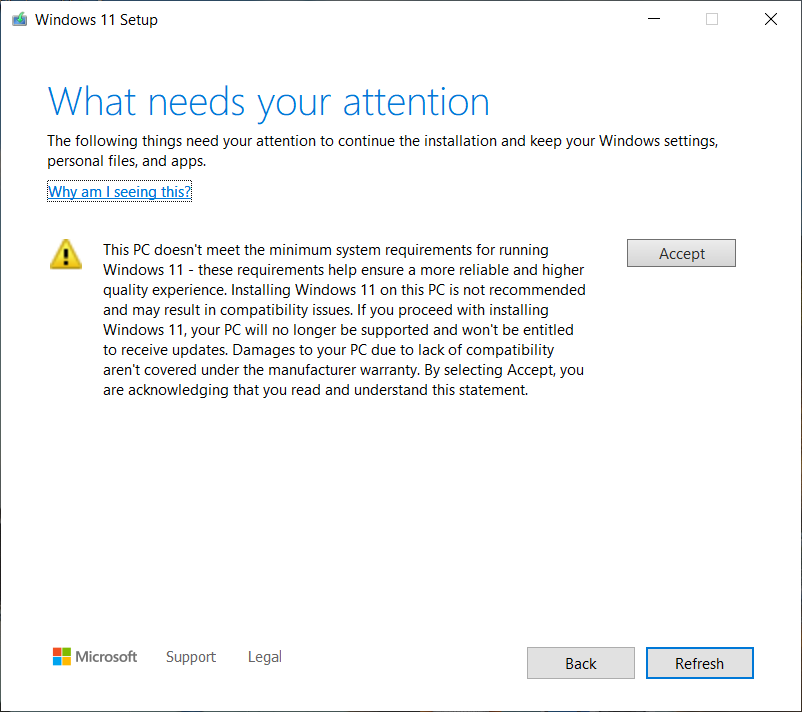
 ) … Yes, they do reserve the right to break things in the future.